
How to Deposit at ArionPlay with GCash
GCash is the fastest and most popular way to fund your ArionPlay account in the Philippines. A deposit goes through in seconds — you open the ArionPlay cashier, select GCash, enter your amount, confirm in the GCash app, and the balance lands in your account before you close the cashier tab. This guide covers the full deposit process, the GLife shortcut, what to do if a deposit does not credit, and the current limits and fees.
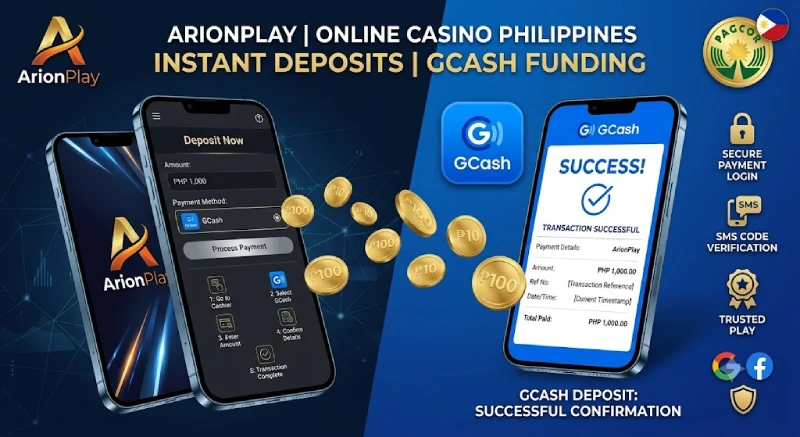
GCash Deposit Quick Stats
| Minimum deposit | ₱100 |
|---|---|
| Processing time | Instant (seconds) |
| Platform fee | None (ArionPlay charges no deposit fee) |
| GLife option | Yes — deposit directly from the GCash app via GLife |
| Currency | Philippine peso (₱) |
| Account needed | Registered ArionPlay account (21+) |
What Is GCash?
GCash is the Philippines’ most widely used mobile e-wallet, operated by Globe Fintech Innovations (Mynt). It lets users send money, pay bills, buy load, and fund online accounts directly from a smartphone without a bank card. For online casino players, GCash is the go-to funding method because deposits process instantly, the app is already on most Filipino phones, and there is no need to enter sensitive bank details on a third-party site. ArionPlay supports GCash through its cashier and via the GLife integration inside the GCash app itself. A verified GCash account with sufficient balance is all you need before opening the ArionPlay cashier.
How to Deposit at ArionPlay with GCash — Step by Step
Follow these steps from the ArionPlay cashier to a credited balance.
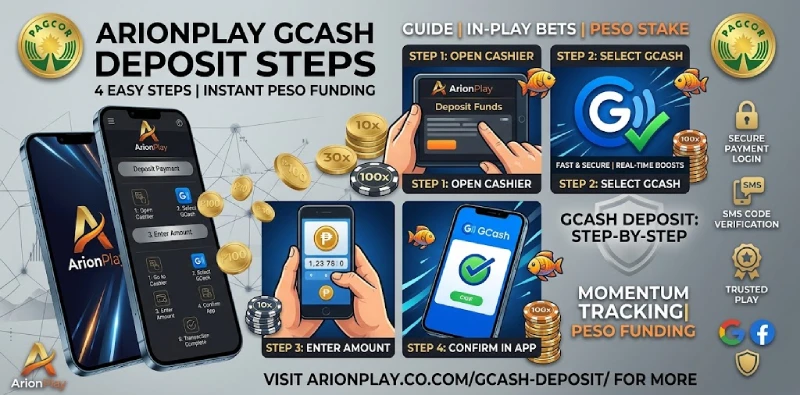
Open the ArionPlay cashier, select GCash, enter your amount, and confirm in the GCash app.
Step 1 — Log in to ArionPlay. Open sodalisgame.com on your browser or the ArionPlay app and log in with your registered mobile number and password. If you have not registered yet, see the ArionPlay registration guide first.
Step 2 — Open the cashier. Tap the Deposit button at the top of the lobby or navigate to the Cashier section inside your account menu. The cashier shows your current balance alongside the available deposit methods.
Step 3 — Select GCash. Choose GCash from the list of payment methods. If you see GLife listed separately, that option goes through the GCash app directly — both credit the same ArionPlay balance.
Step 4 — Enter your deposit amount. Type the amount you want to deposit, starting from ₱100. The cashier shows the exact amount that will be credited to your balance after the transaction so you can confirm before proceeding.
Step 5 — Confirm in the GCash app. ArionPlay redirects you to the GCash confirmation screen, which shows the merchant name and transaction amount. Review both, enter your GCash MPIN, and tap Pay. The deposit credits to your ArionPlay balance within seconds and you can start playing immediately.
Depositing via GLife (GCash App Shortcut)
GLife is a feature inside the GCash app that lets you access partner platforms — including ArionPlay — without opening a browser. If ArionPlay appears in your GLife section, you can log in, navigate to the cashier, and deposit in pesos without leaving the GCash app. The deposit flow and credited amount are the same as the standard cashier route.
The GLife shortcut is useful on mobile because it removes the step of switching between the browser and the GCash confirmation screen. Everything happens inside one app, which reduces the chance of the transaction timing out before you confirm payment. To find ArionPlay on GLife, open the GCash app, tap GLife from the main menu, and search for ArionPlay in the partner list. If it does not appear, use the standard browser cashier route instead — both credit the same balance.
Deposit Not Credited? Here Is What to Do
Most GCash deposits credit within seconds. If your balance does not update after two minutes, work through these checks before contacting support.
Confirm the transaction went through on the GCash side: open the GCash app, go to transaction history, and check that the payment to ArionPlay shows as successful rather than pending or failed. If GCash shows the transaction as successful but ArionPlay has not credited the amount, take a screenshot of the GCash transaction confirmation — the reference number and timestamp — and contact ArionPlay live chat with those details. Support can locate the transaction and manually credit the balance using the reference number. Do not attempt to deposit again before confirming the first transaction failed on the GCash side, as a second deposit from a pending transaction can result in a duplicate charge.

Deposit Limits & Fees
| Item | GCash | Notes |
|---|---|---|
| Minimum deposit | ₱100 | Per transaction |
| Maximum deposit | ₱100,000 | PRODUCTION: Verify current limit on backend — may vary by account tier |
| ArionPlay fee | None | No platform charge on deposits |
| GCash fee | None (standard) | GCash may apply fees on some transaction types — check your GCash wallet |
| Processing time | Instant | Typically credits within seconds |

Frequently Asked Questions
Is a GCash deposit at ArionPlay instant?
Yes. GCash deposits credit to your ArionPlay balance within seconds of confirming payment in the GCash app. If the balance does not appear after two minutes, check your GCash transaction history and contact ArionPlay support with the reference number.
What is the minimum GCash deposit at ArionPlay?
The minimum deposit is ₱100 per transaction. There is no platform fee on deposits from ArionPlay’s side.
What is GLife and how does it work with ArionPlay?
GLife is a section inside the GCash app where partner platforms are accessible without opening a browser. If ArionPlay appears in your GLife, you can deposit directly inside the GCash app without switching to a browser tab.
What do I do if my GCash deposit failed?
Check the GCash app transaction history to confirm whether the payment went through or was cancelled. If GCash shows a successful transaction but ArionPlay has not credited it, contact live chat with the GCash reference number and transaction screenshot.
Can I also deposit with Maya at ArionPlay?
Yes. ArionPlay supports Maya alongside GCash. See the full guide on how to deposit with Maya.
Ready to Deposit?
Log in at sodalisgame.com, open the cashier, and select GCash. A ₱100 deposit takes under a minute and credits instantly. Once your balance is ready, the full game library is open. For players aged 21 and over. See also how to withdraw from ArionPlay.